4. Example Analysis with Screenshots
4.a
 Identify Pixel Value
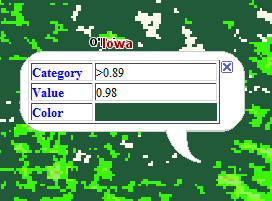
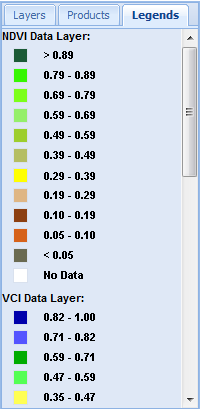
Each pixel within a Data Layer has a category name, category value, and a defined color. The color and category name are also available within the Legend tab.
4.b Define Area of Interest
It is necessary to define an Area of Interest (AOI) in order to perform any analysis. There are four ways to select an AOI.
4.b.i By State/County

You can select an AOI by state, or by County within a state. You can only select one county within one state at a time.
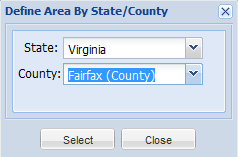
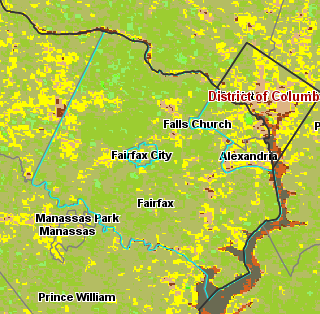
The selected area of interest will be highlighted.
4.b.ii By Rectangle
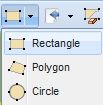
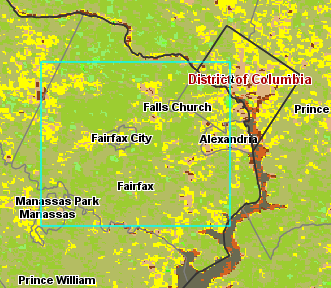
Click and drag to define rectangular AOI
4.b.iii by Polygon
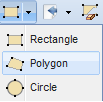
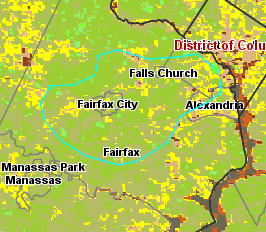
To define a polygon area of interest, click around the boundary of the area. Double click to finish AOI.
4.b.iv By Circle
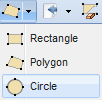
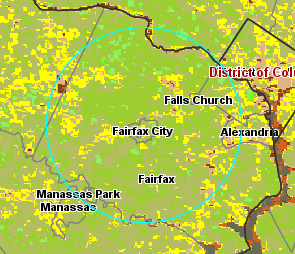
Start by clicking in the center of the circle and dragging outward.
4.c Generate Statistics
 for Area of Interest
Once an Area of Interest is selected, click on the Generate Statistics
button to generate a table of categories within the AOI, the pixel counts of each category, and the resulting acreage calculated from the pixel count.
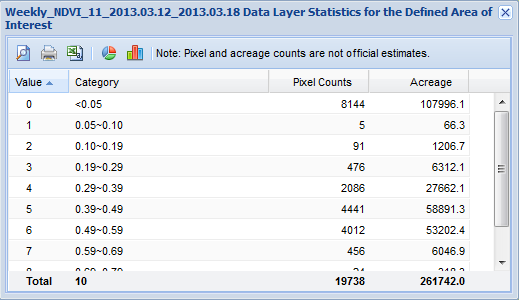
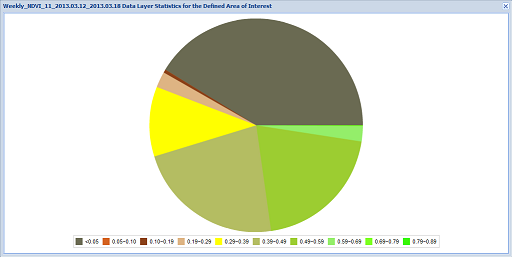
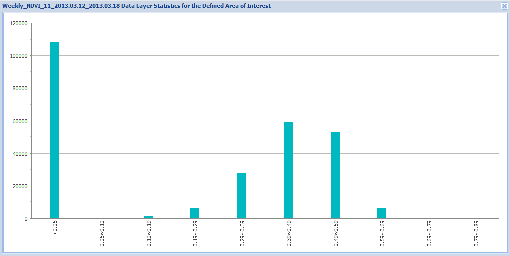
For a visual representation of the table data click on the Pie Chart
 or the Histogram

4.d Change Analysis
4.d.i
 Generate Profile at Pixel
Click the Generate Profile at Pixel
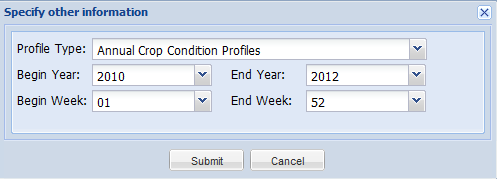
button then move cursor to a point of interest (POI) and left click the mouse. A pop-up dialog will show up. From there, choose to produce different profiles of this POI. The current system is limited to analysis based on weekly or biweekly composite of NDVI.
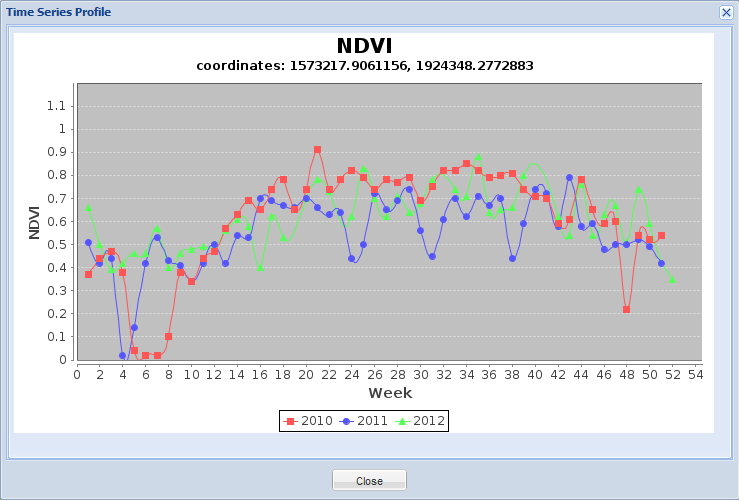
4.d.i.i Annual Crop Condition Profiles
The window will display annual or multiple year crop condition profiles.
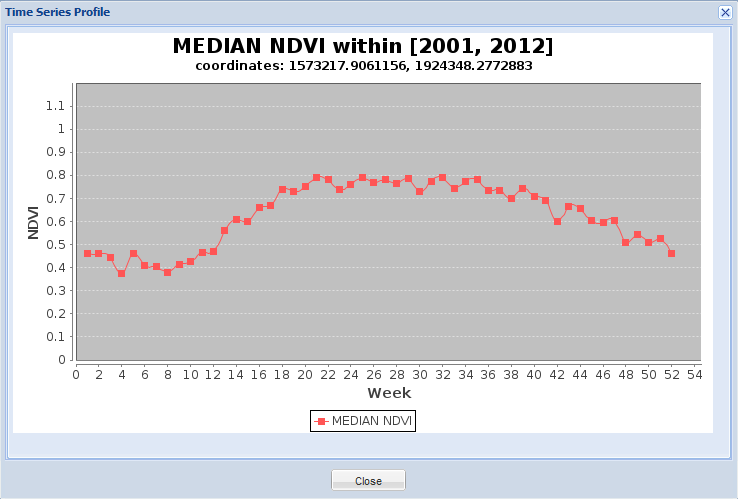
4.d.i.ii Median Annual Crop Condition Profile
The window will display median crop condition profile of multiple years.
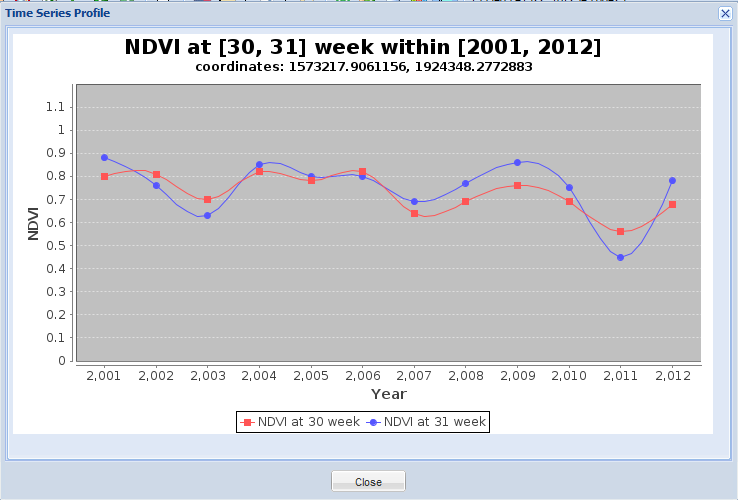
4.d.i.iii Crop Condition Crossyear Comparision
The window will display cross year crop condition comparative profile.
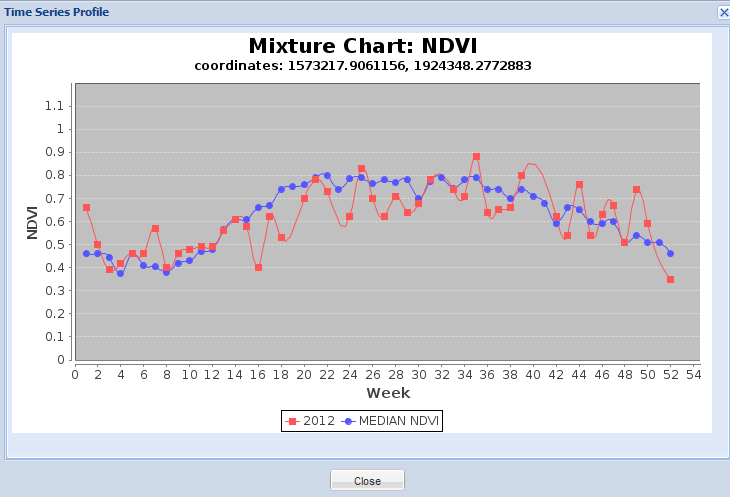
4.d.i.iv Annual Crop Condition Profiles vs Historical Median
The window will display combo chart of crop condition profiles vs historical median.
4.d.ii
 Swipe Layer Images
Click the Swipe Layer Images
button then choose two layers that need to compare and swipe direction, click close button.
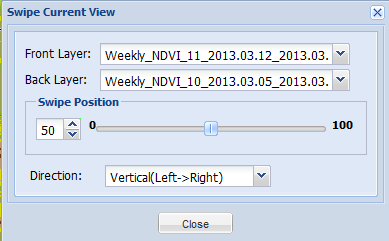
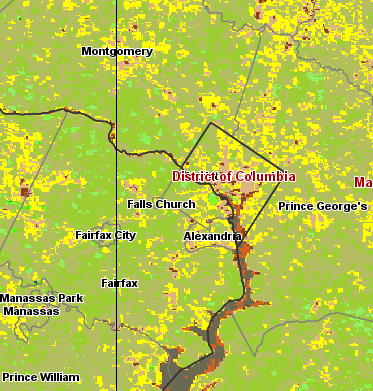
The window will display difference between two layers in details.
4.e
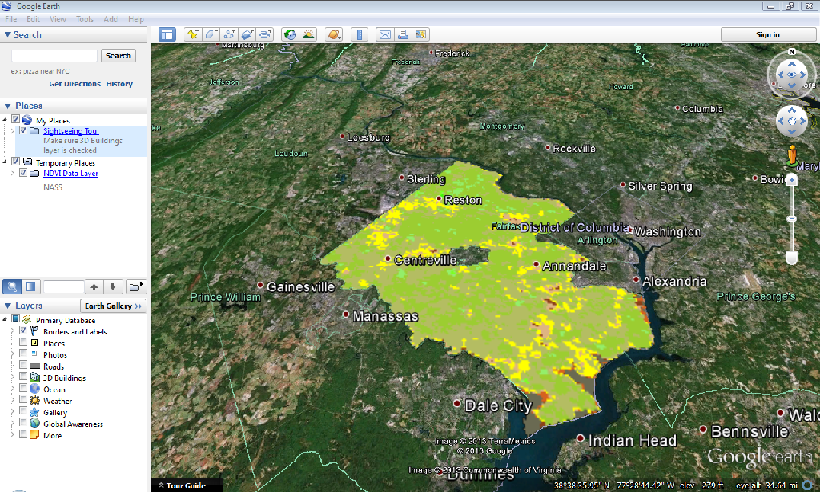
 Download Defined Area of Interest Data into Google Earth for an Area of Interest
Select an Area of Interest to display in Google Earth. Click on the
Download Defined Area of Interest Data button. In the resulting window, select the data of interest. Multiple data may be selected. Click Submit.
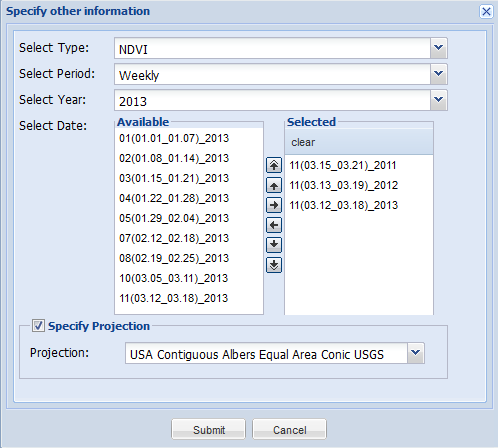
There are multiple projections to choose from. The default projection is USA Contiguous Albers Equal Area Conic USGS. Use the pull down menu to choose which projection is desired.
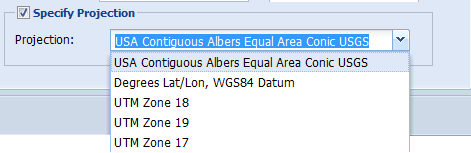
Click Submit to select Downloading options.
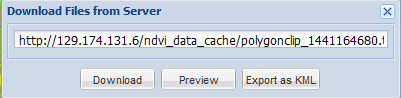
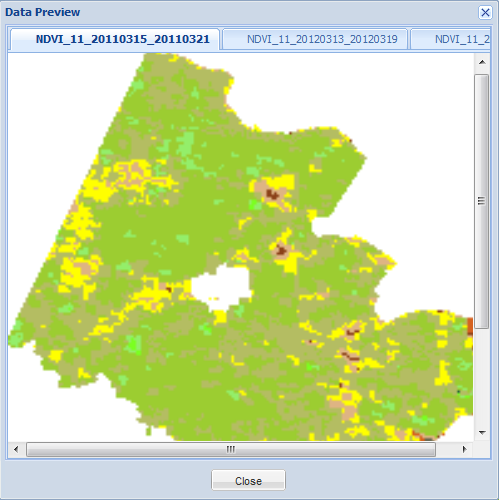
To preview all selected data, click
 button. Using this button allows you to click through each data selected using the tabs at the top of the window.
To import into Google Earth, click
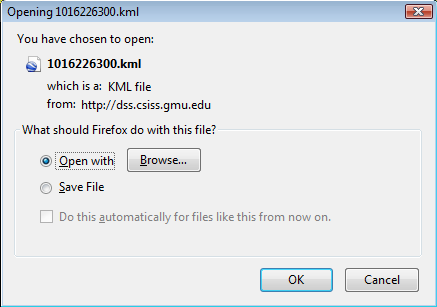
 to download the .kml file required to load into Google Earth.
If Google Earth is running, select Open to download directly into Google Earth.